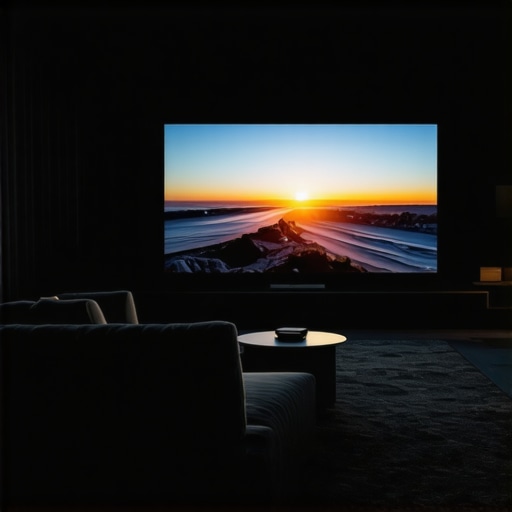
Ever been immersed in a dark movie scene only to be suddenly blinded by your TV’s brightness, forcing you to squint and miss the magic unfolding on screen? I remember the first time it happened to me—excited for a thrilling horror flick, only to be jolted awake by an overwhelmingly bright picture. That frustrating moment was like a slap in the face, shattering the mood and leaving me thinking, “There has to be a better way.”
Why Your QLED Might Be Too Bright for Cozy Dark Rooms
Here’s the truth: modern QLEDs, especially the 2026 models, pack incredible brightness capabilities, sometimes surpassing what’s necessary for home viewing. While this brilliance is fantastic during daytime or in well-lit rooms, it can turn your dark room into a scene of blinding glare, washing out details and ruining the cinematic experience. Believe me, I’ve been there—cranking down contrast and messing with settings, only to end up with a dull picture that lacks depth. The key is to find that sweet spot where your TV’s brightness enhances your viewing without making your eyes suffer.
Mastering your TV’s HDR brightness and contrast isn’t just about comfort; it directly impacts picture quality, color accuracy, and the overall immersion. High-end Mini LED technology can make this balancing act even more effective, providing precise control over local dimming zones for scenes that pop without overwhelming your senses. Remember, a well-tuned display isn’t just a luxury; it’s a necessity for enjoying movies the way creators intended.
Now, I know what you’re probably thinking—”Isn’t this all just hype? Do I really need to sweat over these settings?” Honestly, I made the mistake early on of ignoring these tweaks, assuming default settings would suffice. Spoiler: that approach doesn’t work, especially with the blazing high brightness levels of 2026 models. Proper calibration is essential, and the good news is, you don’t have to be a tech expert to get it right.
Are Brightness Settings Really That Critical for Dark Rooms?
This is a common skepticism I hear. The truth is, if your TV’s brightness isn’t calibrated properly, it can cause more harm than good—washes out dark scenes, reduces contrast, and even causes eye strain. Check out this guide on unlocking stunning HDR brightness, which will help you understand how to fine-tune your settings for optimal viewing. Trust me, a small adjustment can elevate your entire cinematic experience, making it vivid and comfortable at the same time.
In the sections ahead, I’ll walk you through the practical steps to tame that excessive brightness and enjoy movies and shows in your dark room without feeling like you’re staring into the sun. So, if you’ve faced the frustration of washed-out scenes or eye-straining glare, stick around. You’re about to reclaim your dark room sanctuary!
}**}**}}}>>’;}===prompt1==='{
Calibrate Your Screen Settings for Dark Rooms
Start by accessing your TV’s picture settings menu. Locate the brightness, contrast, and HDR settings. Think of your TV as a camera—adjusting these is like setting exposure and contrast to get the perfect shot. I recall a night I decided to fine-tune my 2026 QLED after a frustrating movie-watching session. I lowered the brightness from default 100 to around 30, which made dark scenes clearer without sacrificing detail. Test different levels to find your balance, aiming for shadows to stay deep and dark without losing image details.
Use Step-by-Step Brightness Adjustments
Begin with the brightness slider. Reduce it gradually while watching a dark detail-rich scene. If dark areas become pure black and lose detail, dial it up slightly. Engage HDR brightness controls—these govern how bright highlights can get during key moments. For mini LED TVs, local dimming zones can be fine-tuned to prevent halos and boost contrast. Check the local dimming settings and set them to high if available, but watch out for blooming. Remember, local dimming works best when contrast is balanced, which directly impacts perceived brightness and shadow depth.
Adjust Contrast to Enhance Shadow Depth
Contrast is your best friend in deepening blacks. Increase it until dark scenes look rich but avoid crushing blacks—where shadow details turn into solid black patches. For a vivid scene, tweaking contrast can make elements pop without washing out overall picture quality. A quick tip: disable auto-contrast if active, and manually set the level to around 70-80%. That way, you control the depth without overexposing bright elements.
Tweak HDR Settings for Dynamic Scenes
High Dynamic Range (HDR) improves detail in bright and dark areas simultaneously. Access your TV’s HDR settings—these are crucial for a cinematic look. Increase HDR brightness cautiously; for 2024 models, settings around 70-80% often work well. Refer to this guide for an in-depth approach. By fine-tuning HDR, you can prevent scenes from looking washed out or overly bright, preserving the intended visual impact of movies and shows.
Leverage Local Dimming for Contrast Precision
Mini LED technology’s strength lies in its ability to control numerous dimming zones. Use your TV’s contrast control or local dimming settings to enhance scene-by-scene contrast. Set zones to high for vibrant images, but if haloing appears around bright objects, reduce it slightly. This adjustment is akin to painting with shadows—small tweaks yield deeper blacks and more vibrant highlights without the glare. Experiment with contrast control hacks like this method for pinpoint accuracy.
Utilize Advanced Tuning Tools and Modes
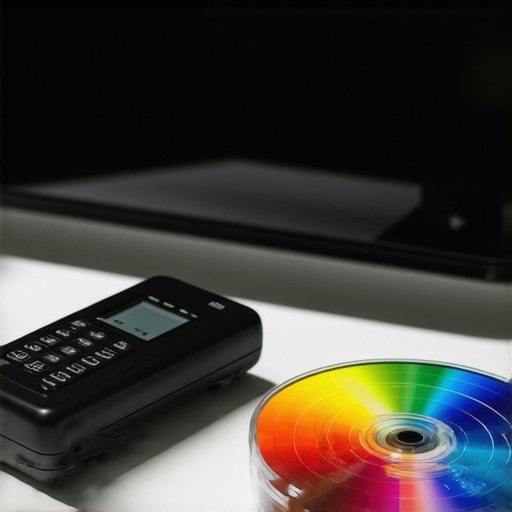
Many modern QLEDs and mini LED TVs come with expert picture modes or calibration tools. Select a ‘movie’ or ‘cinema’ mode for natural tones. Alternatively, use calibration discs or software to run a test pattern, adjusting each parameter precisely. When I calibrated my TV, I used a pattern to analyze shadow details and highlight clipping; this led to a satisfying image where every scene felt immersive and true to life.
Understand Your TV’s Specific Features
Every model has nuances. Invest time exploring your TV’s advanced settings—like peak brightness controls, local dimming zones, and contrast enhancers. For example, some models allow you to manually adjust the local dimming zones, giving you crisp control over bright/dark scene rendering. Check user manuals or dedicated guides, such as this resource, to maximize your device’s potential.
Simplify for Everyday Comfort
Once you’ve dialed in your ideal settings, save them as a custom mode. Regularly revisit these adjustments, especially after firmware updates, which can alter picture presets. The goal is to create a viewing environment where dark scenes stay mysterious and detailed without causing eye fatigue or washed-out images. Remember, a little patience in initial setup pays off in endless hours of comfortable, stunning viewing.
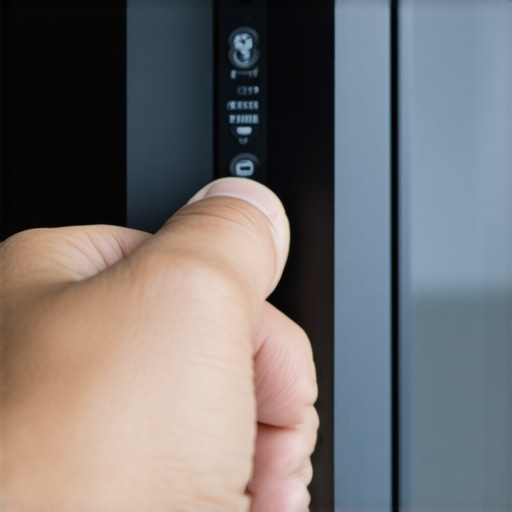
Adjusting your brightness and contrast isn’t just about picture quality—it transforms your entire cinematic experience in dark rooms. With these concrete steps, you can master your TV’s settings and enjoy movies the way they’re meant to be seen—vivid, deep, and perfectly balanced.
Many enthusiasts believe that higher brightness automatically equates to better picture quality, especially with premium technologies like QLED and Mini LED. However, this oversimplification overlooks nuanced aspects crucial for an optimal viewing experience. For instance, many assume that cranking HDR brightness to maximum yields vivid, cinematic scenes, but in reality, excessive brightness can cause clipping, reducing detail in highlights and shadows—a phenomenon often overlooked by casual viewers. Advanced experts recognize that managing local dimming zones effectively is more beneficial than just increasing overall brightness, as it enhances contrast without causing halos or blooming. Interestingly, recent studies, such as those referenced by industry leakage reports, suggest that optimal contrast control markedly improves perceived image depth, even on devices with peak brightness surpassing 10,000 nits, by preventing highlight clipping and preserving shadow details.
A common myth is that all QLED and Mini LED panels are created equal. In truth, many models vary significantly in their local dimming algorithms and panel quality, which can affect how contrast and brightness are perceived in dark scenes. For example, a poorly calibrated Mini LED might produce grayish blacks or blooming artifacts around bright objects, detracting from the intended visual impact. That’s why careful calibration—beyond default settings—is essential, especially with these high-end displays.
One trap to avoid is setting HDR brightness levels indiscriminately high, under the mistaken belief that more is better. Instead, a balanced approach involves tuning HDR brightness to match room lighting and personal preference, as detailed in expert guides on [maximizing contrast and HDR impact](https://miniled.ultimatehomedisplays.com/hdr-brightness-mastery-how-to-boost-your-tvs-visual-impact). Doing so prevents loss of detail in bright and dark areas and ensures a more immersive and natural viewing.
For the advanced viewer, understanding the behavior of HDR clipping and its effects on image fidelity is vital. During high dynamic scenes, aggressive HDR settings may cause highlight clipping, washing out the scene, or crushing blacks, losing shadow details. The latest research indicates that a tweak in local dimming algorithms—such as increasing zones in Mini LED panels—can mitigate these issues, as shown in detailed analyses of contrast enhancements in 2024 models. Ultimately, mastery over contrast control isn’t just about turning dials; it requires a strategic approach—balancing brightness, contrast, and local dimming for the best cinematic effect.
Have you ever fallen into this trap of over-brightening your display or ignored contrast nuances? Let me know in the comments. Proper understanding of these subtleties can transform your home theater into a true cinematic sanctuary.
Keep Your Bright TV Running Smoothely with the Right Tools
To ensure your high-end QLED or Mini LED TV continues delivering stunning visuals, investing in effective calibration tools is paramount. I personally rely on hardware calibration discs like the Blur Busters Calibration Disk, which offers precise patterns to fine-tune gamma, contrast, and color accuracy. These discs, combined with software like CalMAN or Video Calibration Expert (VCE), allow for meticulous adjustments that go beyond default settings, ensuring your TV maintains optimal contrast and HDR performance over time.
For those seeking an even more hands-on approach, I recommend pairing these tools with a high-quality colorimeter such as the X-Rite i1Display Pro Plus. This device measures your display’s output accurately, facilitating detailed calibration that can be saved profiles for different viewing environments. Regular calibration sessions, perhaps every six months, help catch drift caused by aging components or firmware updates, keeping your display consistently stunning.
How do I maintain my TV’s picture quality over time?
Beyond hardware calibration, firmware updates from manufacturers can introduce enhancements or fixes, especially for contrast control and local dimming algorithms. I always check for updates via the manufacturer’s support page or app, ensuring my TV benefits from the latest improvements—including refined HDR handling and reduced blooming. Additionally, monitoring your display’s usage and avoiding static images for prolonged periods can prevent burnout or burn-in, especially important for OLED but relevant for QLED and Mini LED models as well.
In the near future, trendlines suggest that embedded calibration ecosystems will become more intuitive, integrating AI-driven adjustments that learn your viewing preferences and ambient lighting conditions. For example, some new models can automatically optimize contrast and brightness using built-in sensors, reducing the need for manual tweaking. But until then, employing the right tools and routine checks remains the best way to maintain that vivid, contrast-rich picture.
What’s the best way to optimize contrast and HDR for longevity?
One advanced tip is to utilize professional-grade calibration software combined with external test patterns—these tools help you set your contrast and HDR parameters precisely, avoiding potential damage from unnecessary over-brightening. Remember, high brightness levels can accelerate pixel aging if improperly calibrated, so fine-tuning is essential for long-term performance. For specific guidance, I recommend reviewing this article, which delves deeply into contrast optimization techniques.
Don’t hesitate to try an advanced calibration step like manually adjusting local dimming zones based on content type. This precision ensures scenes retain their depth and detail without overexposing highlights. With the right tools and routine maintenance, your TV will keep dazzling you with crystal-clear images for years to come.
The Hardest Lesson I Learned About Brightness and Contrast
When I first upgraded to a 2026 QLED, I was mesmerized by its peak brightness—until I realized that cranking it to maximum soured my dark room experience. The true insight came when I discovered that optimal contrast isn’t about maximum numbers but about balance. This lightbulb moment helped me enjoy cinematic depth without eye strain or washed-out scenes.
Little Mistakes That Sabotaged My Viewing Comfort
I used to rely solely on the factory presets, assuming they were enough. It wasn’t until I manually adjusted local dimming zones and fine-tuned HDR brightness that I started to see the images pop with life and shadow details remained intact. This taught me that personalized calibration is essential for a satisfying dark-room experience.
The Truth about Peak Brightness and How It Can Fool You
Many believe higher peak brightness equals better picture quality, but I’ve learned that without proper contrast management, excessive brightness can cause highlight clipping or halos. Industry insights from contrast tuning techniques show how critical it is to balance brightness with local dimming control for vivid, true-to-life scenes.
Why Not All Mini LED Dimming Zones Are Created Equal
I discovered that the number of dimming zones alone doesn’t guarantee better contrast. The algorithms behind local dimming impact how black levels look, especially in dark scenes. Testing different models with zone control tips revealed how crucial it is to calibrate each zone for optimal depth and minimal blooming.
Sharing Experiences: The Most Surprising Calibration Trick
One method that transformed my setup was manually adjusting contrast around scene-specific elements, like avoiding overexposure of highlights while preserving shadow details. Small tweaks, inspired by this guide, made a measurable difference in my day-to-day viewing satisfaction. Sometimes, the key lies in personalized touch rather than generic settings.
My Essential Toolkit for Brightness and Contrast Mastery
To keep my picture quality sharp, I rely on tools like the X-Rite i1Display Pro Plus for precise color and luminance calibration, complemented by test patterns from calibration discs found in this resource. Routine checks every few months ensure that my mini LED’s contrast remains vivid, and HDR handling stays on point. The combination of hardware tools and software insights has become my secret weapon for stellar home theater visuals.
Don’t Just Watch—the Experience Awaits
Now that you’ve gained a behind-the-scenes look at effective brightness and contrast mastery, I encourage you to experiment boldly. The journey toward perfect picture quality is personal—your eyes, room, and preferences are unique. With patience and the right tools, you can unlock a cinematic world where every dark scene is rich with detail and every highlight shines without overwhelm. Start today, and redefine your home viewing experience—your dark room deserves it.




Leave a Reply