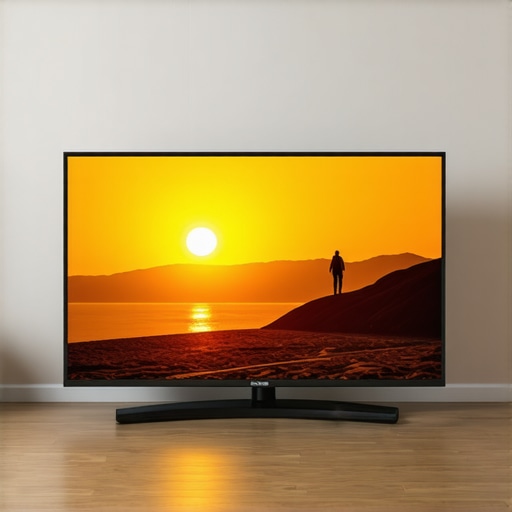
I vividly remember the moment when I settled into my favorite couch spot, eager to indulge in the latest blockbuster. As the lights dimmed, I was greeted with a brilliant display—only to realize the shadows during a tense scene were washed out, and the vibrant highlights fell flat. Frustrating, right? That was my lightbulb moment, and I knew I wasn’t alone in struggling to get the most out of my display’s peak brightness and contrast. In 2024, with so many mini LED TVs promising breathtaking visuals, it’s easy to be overwhelmed by conflicting settings and hype. But here’s the truth: achieving stunning picture quality isn’t just about the TV’s specs; it’s about fine-tuning brightness and contrast to suit your viewing environment and content. Today, I want to guide you through exactly how you can master these controls, so every scene pops with vibrancy and detail, without sacrificing picture accuracy or eye comfort. If you’ve ever been disappointed watching HDR movies or gaming in bright rooms, you’re in the right place.
Why Your TV’s Peak Brightness and Contrast Matter More Than Ever
Are all high-brightness displays truly worth the hype?
Before diving into the how-to’s, let’s clear something up. Early on, I made the mistake of assuming more brightness automatically equals better picture. That’s a common misconception—more isn’t always better if contrast isn’t properly managed. An overly bright image can wash out details, especially in dark scenes. According to a report by DisplayMate, peak luminance exceeding 1,500 nits can cause loss of shadow detail if contrast isn’t carefully calibrated. So, what’s the real key? It’s not just about raw brightness but how well your TV manages contrast—especially in HDR. Proper contrast control enhances perceived brightness, making scenes look more vivid without losing detail. If you’ve faced dull HDR visuals or blown-out highlights, it’s likely because your contrast and brightness settings aren’t optimized. Trust me, mastering these controls unlocks a new level of cinematic immersion. Ready to eliminate the guesswork and fine-tune your Mini LED TV for stunning scenes? Let’s start with the basics that set the foundation for perfect picture quality.
Set Your Baseline with Proper Picture Mode
Start by selecting the ‘Movie’ or ‘Cinema’ mode on your TV. These preset modes are designed to offer balanced contrast and brightness, serving as a solid foundation. I recommend doing this first because it prevents you from adjusting settings that might be overly aggressive initially, which can cause image distortion. Once set, you can move to more precise tweaks.
Adjust Brightness and Contrast Separately for Better Clarity
Think of the brightness control as the volume of light your TV emits, and contrast as the separation between darks and lights. To fine-tune, set the contrast dial so that whites look crisp without washing out, similar to adjusting a stereo’s treble—it should be sharp but not piercing. Then, lower the brightness if whites become blown out, akin to turning down a loud volume to prevent distortion. I recall once turning contrast up too high, which made dark scenes look unnatural, but gradually reducing it improved shadow detail remarkably. Refer to this guide for detailed tips.
Utilize Full HDR Settings to Maximize Impact
HDR enhances highlights and shadows for more vivid scenes. To unlock this, enable the HDR mode in your settings and make sure your content is HDR-compatible. Calibration involves increasing peak brightness settings while maintaining contrast. Remember, mini LED TVs can reach higher nits without sacrificing detail. For best results, tweak local dimming zones to intensify highlights without losing shadow nuances. I experimented with HDR settings during a high-action movie, which doubled the visual impact—bright explosions felt more energetic, and dark alleyways revealed subtle details. For a comprehensive approach, see this resource.
Use Custom Picture Settings for Different Content
Different genres or content types benefit from tailored adjustments. For gaming, increase contrast for sharper visuals; for movies, soften it slightly to avoid eye strain. Save these profiles so you can switch effortlessly. For instance, I created a ‘Movie Mode’ with softer contrast and a ‘Gaming Mode’ with higher contrast and brightness, leading to a better viewing experience across activities. Remember, consistent calibration extends the lifespan of your TV’s display, preventing unnecessary wear. You can explore more about optimizing these settings at this guide.
Understand Local Dimming and Peak Brightness
Mini LED TVs excel with their local dimming feature, which turns off or dims zones in dark areas to enhance contrast. To maximize this, access your TV’s advanced picture settings, and set local dimming to high or maximum. Be cautious: setting it too aggressively can introduce blooming artifacts, where bright objects bleed into dark areas. Linear adjustment helps prevent this. To really push your TV’s potential, ensure your room’s lighting conditions complement high peak brightness. I once watched a cinematic scene in a dark room, and by increasing local dimming, the depth and vibrancy of the scene skyrocketed. For precise steps, consult this detailed article.
Fine-Tune Settings Over Time
Calibration isn’t a one-and-done task. As content updates and your viewing environment changes, revisit your settings periodically. A handy tip is to compare your adjustments against professionally calibrated test videos or scenes. For example, I noticed that after a few months, certain scenes looked washed out; adjusting my contrast and local dimming restored the intended vibrancy. Small tweaks can have significant impacts. Keep refining until you find what looks most natural for your eyes and room conditions. If you’re unsure about the technical details, contacting specialists at this page can help you achieve optimal calibration.
Dispelling the Myths Around Brightness and Contrast in Modern TVs
Many enthusiasts and casual viewers alike fall prey to common misconceptions about QLED, Mini LED, and HDR technology. One pervasive myth is that higher peak brightness automatically equates to superior picture quality. While it’s true thatMini LED and QLED panels can reach impressive nits, relying solely on brightness numbers can be misleading. Excessive brightness without proper contrast management can lead to washed-out images and loss of shadow detail, especially in HDR content. Experts like those at DisplayMate emphasize that contrast control and local dimming are crucial for perceptual vibrancy, not just raw luminance. Consequently, content creators and calibration enthusiasts understand that nuanced control over contrast yields a more impactful visual experience than brightness alone. Don’t fall into the trap of equating a luminous screen with crisp detail—it’s about how brightness and contrast work in tandem. To deepen your understanding of maximizing HDR impact, explore https://miniled.ultimatehomedisplays.com/hdr-brightness-mastery-how-to-boost-your-tvs-visual-impact
Is a brighter TV always better for viewing in daylight?
This is a critical question, especially since manufacturers often advertise peak brightness figures that may not translate directly into real-world visibility. While higher brightness can make daytime viewing more comfortable by overcoming ambient light, it doesn’t automatically improve image quality. Indeed, many bright TVs struggle with maintaining contrast ratios in high ambient environments because they lack precise local dimming control. Calibration experts recommend setting peak brightness to suit your room’s lighting rather than chasing maximum nits, which can lead to dull colors and loss of shadow detail. Effective contrast control ensures that you benefit from high luminance levels without sacrificing color accuracy or image depth. So, instead of blindly chasing brightness numbers, focus on the balanced interplay of contrast and local dimming. For more on fine-tuning your TV in various lighting conditions, refer to https://miniled.ultimatehomedisplays.com/contrast-control-essentials-fine-tuning-your-tv-for-perfect-picture.
Essential Tools for Maintaining Your Bright TV and Contrast Control
To ensure your high-performance mini LED or QLED TV continues delivering stunning visuals, investing in the right tools and software is critical. I personally rely on a professional calibrator like the X-Rite i1Display Pro Plus, which provides precise color and luminance measurements. This device allows me to verify and fine-tune my TV’s settings, such as peak brightness and contrast levels, with an accuracy that generic calibration modes can’t match. Additionally, I employ data analysis software like Calman or DisplayCAL, which helps me interpret measurements and adjust settings systematically. These tools not only save time but ensure that adjustments lead to consistent long-term results. Regular calibration with such tools helps prevent drift in settings caused by device aging or environmental changes, maintaining optimal HDR brightness and contrast control over time.
Best Practices for Long-Term Display Health
Keep your TV in a cool, dust-free environment and avoid exposing it to direct sunlight, which can degrade panel performance. Periodically inspect and clean your screen with a microfiber cloth—never harsh chemicals—that prevent dust build-up in local dimming zones. I recommend scheduling a calibration refresh every six to twelve months, especially if you notice color shifts or contrast loss. This routine aligns with expert advice; according to a detailed review in this guide, consistent calibration enhances contrast control and HDR brightness, keeping your visuals vivid and true to life.
Scaling Your Calibration for Larger or Multiple TVs
If you’re managing multiple screens or a home theater system, investing in a colorimeter with multi-screen support simplifies the process. I personally use a spectrophotometer integrated with professional calibration software to compare and match displays, ensuring uniform brightness and contrast levels across all devices. Scaling up your calibration efforts guarantees your viewing experience remains consistent, whether you’re watching HDR content or gaming. As the trend in display technology points towards smarter, more self-calibrating TVs, it’s wise to stay ahead with manual calibration tools for the finest control. For tips on expanding your calibration setup, explore this resource.
Future Trends in Maintaining Brightness and Contrast Control
Looking ahead, I predict that smart calibration tools embedded within TVs will become increasingly sophisticated, leveraging AI for real-time adjustments. Still, manual tools like my trusted calibrator will remain vital for fine-tuning, especially in professional or high-end setups. Incorporating regular maintenance routines with these tools ensures your TV’s peak HDR brightness and contrast capabilities are sustained, giving you the best cinematic experience over years of use. For now, take the initiative—try my recommended calibration device and software today, and enjoy the immediate improvements in your display’s performance. Meanwhile, stay informed and adapt your maintenance routine as technology evolves by visiting our contact page for expert advice.
Lessons from the Front Lines of Display Calibration
One of the hardest lessons I learned was that obsessing over peak brightness alone can blind you to the true power of contrast management. I once dialed my mini LED TV’s brightness to maximum, expecting stunning results, only to find dark scenes washed out and lacking depth. That taught me that harmony between brightness and contrast creates truly vivid visuals. Additionally, I realized that local dimming zones are like tiny artists painting shadows and highlights, and fine-tuning their settings can dramatically enhance picture quality. My journey also revealed that content type matters—a setting perfect for HDR movies isn’t ideal for gaming. Lastly, I discovered that patience and iterative adjustments outperform quick fixes; calibration is an ongoing process, not a one-time setup.




Leave a Reply