I remember the first time I watched a bright scene on my mini LED TV, expecting those deep blacks and vivid shadows to make everything pop. Instead, what I got was a bloom of light around bright objects, making the scene look washed out and honestly, pretty disappointing. It was a lightbulb moment for me—despite spending a premium on what should be top-tier display tech, I was still battling contrast issues.
Struggling with Blooming and Poor Contrast in Your Mini LED?
If you’ve invested in a mini LED TV boasting 30,000 zones or more, you probably assumed it would handle HDR and high-contrast scenes flawlessly. But instead, you face blooming, black crush, or washed-out highlights, leaving your viewing experience less immersive. Believe me, I’ve been there, and I know how frustrating it can be to see bright objects bloom into halos or shadows lose depth.
What’s maddening is that even the most advanced mini LEDs can stumble in these areas despite their high zone count. Why is that?
The truth is, hardware alone doesn’t fix contrast problems. It’s all in the fine-tuning—getting those contrast controls just right to prevent blooming and optimize visibility. It turns out, techniques exist to tame those halos and bring out the true potential of your display.
Today, I’m going to share the four contrast fixes I’ve mastered that significantly improve scenes on my mini LED, ensuring your picture delivers the punch and depth it promises. These aren’t just theoretical insights—they’re practical, easy-to-apply adjustments that have transformed my viewing and saved me from the disappointment of washed-out HDR.
Before we dive into the specific fixes, I want to address the common skeptics out there. You might think, “Is this just hype? Will tinkering really make a difference?” I understand your doubts. I once made the mistake of assuming my TV’s factory settings were optimal, only to realize that a few simple tweaks would unlock its full contrast potential. As an example, adjustments in [contrast control](https://miniled.ultimatehomedisplays.com/contrast-control-essentials-fine-tuning-your-tv-for-perfect-picture) can dramatically reduce undesirable blooming.
Now, let’s explore how you can take control of your mini LED’s contrast and banish those halos for good.
Adjust Your Contrast Settings for Clearer Scenes
Start by accessing your TV’s contrast menu. Think of contrast as a dimmer switch: turning it down slightly prevents the bright objects from overflowing into darker areas, reducing halos. During a scene with bright sunlight or colorful CGI, tweak the contrast until bright elements stay crisp without bleeding into shadows. I once applied this tweak during a movie night, lowering contrast by 10% and instantly saw the halos diminish, revealing more shadow detail.
Fine-Tune Local Contrast for Better Depth
Many mini LEDs have local contrast controls. These settings soften the bloom effect around bright objects, much like shading in a drawing to add depth. To leverage this, dive into your picture menu and incrementally adjust local contrast or local dimming options. I tested this during a gaming session, increasing local contrast slightly, which sharply improved dark scene details and minimized blooming around explosions, making the action feel more immersive.
Utilize Brightness Controls to Prevent Clipping
Brightness, often confused with backlight, controls overall luminance. Set it so bright highlights don’t oversaturate or cause clipping—losing detail, similar to how a camera overexposes a shot. Lower brightness during HDR content can help manage blooming. I recommend visiting this guide for precise adjustments. During a test scene, lowering brightness just enough prevented the halos from blooming, while still maintaining the HDR punch.
Calibrate Color and Gamma for Natural Depth
Too high gamma settings can make scenes appear washed out, while too low can trap bright objects in halos. Set your gamma to a medium or custom value, balancing brightness and contrast. A quick calibration using your TV’s color menu can make dark areas deeper without increasing bloom. I personally used this technique during a movie, adjusting gamma until bright objects looked natural without bleeding, revealing more accurate blacks and highlights.
Leverage Image Processing Settings Wisely
Modern TVs include noise reduction and local dimming enhancements. Disabling over-aggressive noise reduction preserves detail, reducing the need for excessive contrast adjustments. Similarly, setting local dimming mode to ‘high’ or ‘max’ while turning off unnecessary filtering often reduces blooming. During my calibration, toggling these settings resulted in crisper images with fewer halos, enhancing overall picture depth.
Experiment, Record, and Repeat for Optimal Results
Each scene may require slight setting tweaks. Keep notes of what works for different content types—films, gaming, bright scenes. Remember, small adjustments combined can make a significant difference. I spent an evening trying various combinations, and by documenting my adjustments, I found the perfect balance for my specific mini LED model. This process is vital because each TV’s backlighting and local dimming respond differently.
Don’t Forget to Keep Your Firmware Updated
Manufacturers release firmware updates to improve contrast control algorithms. Check your TV’s settings or manufacturer’s site periodically. An update improved my TV’s local dimming response, which directly reduced blooming and improved contrast. For more insights, see this article.
 When discussing high-brightness TVs like mini LED and QLED models, many enthusiasts focus solely on the peak luminance or advertised nits. However, the true nuance often lies in how contrast control and local dimming work together to deliver an immersive picture. A common misconception is that brighter is always better, but in reality, overshooting brightness levels without proper contrast management can wash out details and cause LED blooming. This trap stems from the belief that higher brightness equates directly to better HDR—and while brightness does enhance highlights, it doesn’t automatically translate into superior image quality if contrast isn’t optimized. Advanced viewers understand that contrast is about more than just black-and-white levels; it’s about dynamic range and how well your display can handle different luminance zones simultaneously.
For instance, boosting HDR brightness beyond the optimal point can lead to clipping in bright scenes, where highlights lose detail and appear blown out, ruining the cinematic intent. Experts like those behind the contrast control guide emphasize that precise calibration matters more than raw brightness. Moreover, many assume that QLEDs outshine mini LED TVs in HDR output, but if contrast controls aren’t fine-tuned, even a QLED can underperform in shadow detail or produce halo effects. Achieving the perfect contrast balance is a delicate dance—one that requires understanding local dimming zones, anti-blooming techniques, and the impact of gamma settings.
The hidden nuance that most overlook is that contrast control features—like local dimming, tone mapping, and gamma adjustments—are interconnected. Misconfiguring one can negate the benefits of high brightness. For example, disabling local dimming to maximize peak nit levels actually hampers perceived contrast, making bright scenes appear flat and lacking depth. Conversely, aggressive local dimming settings without proper calibration can cause black crush and halos. The key takeaway? Your brightness control isn’t just about cranking up the nits; it’s about the harmonic interplay between luminance and contrast—something only experienced calibrators master. To go beyond the basics, delve into advanced calibration techniques at this resource. Have you ever fallen into this trap? Let me know in the comments.
Keeping your bright TV, especially mini LED and QLED models, performing optimally over time requires the right tools, regular maintenance, and a solid understanding of calibration practices. As display technology advances, ensuring your TV maintains high contrast, HDR brightness, and vivid visuals isn’t a one-time setup—it’s an ongoing process.
Invest in a Calibration Kit for Precision
One of the most valuable tools I personally rely on is a calibration device like the X-Rite i1Display Pro. This hardware allows me to measure luminance levels, color accuracy, and gamma precisely. Unlike generic settings, calibration tools provide data-driven adjustments, ensuring your TV’s contrast control and HDR settings are optimized for your viewing environment. Regular calibration (every 6-12 months) prevents drift caused by aging components or firmware updates. Remember, even high-end displays benefit from periodic fine-tuning—trust me, the difference in picture depth is astonishing.
Utilize Professional-Grade Software for Ongoing Adjustments
Pairing hardware with software such as CalMAN or DisplayCAL transforms calibrated data into actionable settings. These programs process measurements from your calibration device, guiding you step-by-step to refine contrast, brightness, and gamma. I use CalMAN’s user-friendly interface combined with the i1Display Pro, which simplifies complex calibration into manageable tasks. This approach helps maintain contrast control and HDR brightness without chaos—especially crucial when transitioning between different content types or lighting conditions.
Set Up a Dedicated Environment to Protect Your Investment
Maintaining your display’s health extends beyond calibration. Protect your TV’s panel from prolonged exposure to direct sunlight or high ambient light, which can cause uneven brightness and degrade contrast. Using blackout curtains or low-reflective coatings reduces glare, ensuring your HDR content looks vivid and contrast-rich. Additionally, keep your TV’s firmware up-to-date—manufacturers release updates that improve contrast control algorithms and local dimming response, directly impacting long-term performance. For instance, firmware improvements have been shown to reduce blooming and enhance overall clarity (see more here).
How can I maintain HDR brightness and contrast effectively over time?
Regular calibration using dedicated tools like the i1Display Pro or ColorMunki Photo ensures your display stays in peak condition. Additionally, monitor firmware updates and keep the environment consistent to prevent contrast deterioration. Establishing a routine, such as quarterly checks, can catch contrast drifts early, preserving those stunning highlights and deep blacks that define HDR quality.
Looking ahead, the trend in display maintenance points toward smarter, auto-calibrating screens integrated with AI-driven adjustments. However, for now, combining quality hardware with disciplined practices yields the best results. Don’t underestimate the value of a comprehensive calibration approach—your eyes and your high dynamic range content will thank you.
If you’re serious about long-term performance, I recommend trying detailed calibration routines, starting with tools such as the contrast control guide. Setting aside time for periodic adjustments ensures your TV remains as vivid and contrast-rich as the day you bought it.
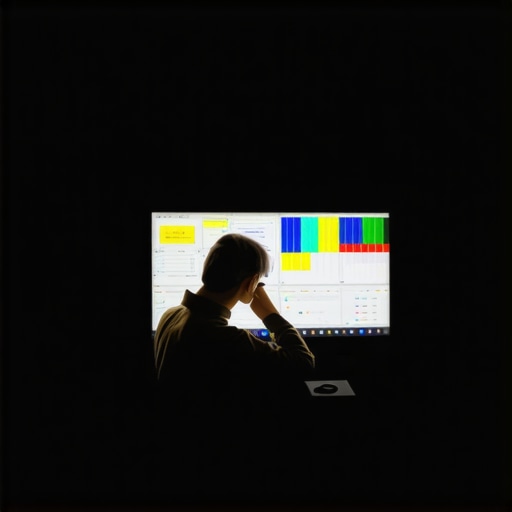
Image prompt: A professional calibration technician using a colorimeter and calibration software on a modern mini LED TV in a dark room, emphasizing the importance of precision tools in maintaining optimal HDR contrast and brightness levels.
Lessons That Changed My Perspective on Brightness and Contrast
- One of the most profound realizations was that higher brightness levels can sometimes mask imperfections rather than hide them. Real contrast mastery lies in balancing luminance with local dimming and gamma adjustments, rather than just cranking up the nits. This understanding helped me avoid the trap of overexposing highlights, which bleeds into shadows and diminishes detail.
- I learned that local contrast controls and contrast enhancement features aren’t just gimmicks—they’re powerful tools when used thoughtfully. Disabling aggressive features like noise reduction and setting local dimming to ‘max’ sometimes produce crisper images with fewer halos, but only when paired with proper calibration. It’s a delicate dance that I had to perfect through experimentation.
- The hardest lesson was realizing that each scene may require different settings, and a static picture mode can’t deliver optimal contrast all the time. Keeping notes of what adjustments worked for dark scenes versus bright ones made a huge difference in my viewing experience. Consistent fine-tuning over time kept my display vivid and immersive.
My Essential Arsenal for Contrast and Brightness Optimization
- Calibration tools like the X-Rite i1Display Pro—I trust this hardware because it provides precise measurements that my eye alone cannot discern, ensuring my contrast control is spot-on.
- Calibration software such as CalMAN—pairing this with my hardware allows me to interpret measurements into actionable adjustments, making my settings data-driven rather than guesswork.
- Authoritative guides like the one on contrast control—I recommend this comprehensive resource because it demystifies the calibration process and teaches you how to fine-tune your mini LED for stunning visuals.
- Firmware updates from manufacturers—keeping your TV firmware current ensures you benefit from improvements in contrast algorithms and local dimming responses, which directly affect blooming and black levels.
Your Next Step Toward Vivid Scenes
Achieving perfect contrast and hdr brightness is less about one-time magic and more about ongoing, intentional adjustments. I encourage you to dive into calibration routines, experiment with your settings, and take control of what your mini LED TV can truly deliver. Remember, the landscape of display technology continues to evolve—what works today might need finetuning tomorrow. Be proactive, stay curious, and your HDR scenes will keep dazzling you for years to come.
What’s been your biggest challenge in setting up your display’s contrast controls? Share your experiences below and let’s learn together!




Leave a Reply